The Yogas page detects every planetary combination in a chart, ranks them, and explains what each one does in the native's life. It is free — no credits, no unlock.
Before you start
You need a saved chart with its calculations complete. Nothing else.
Step 1 — Open the Yogas page
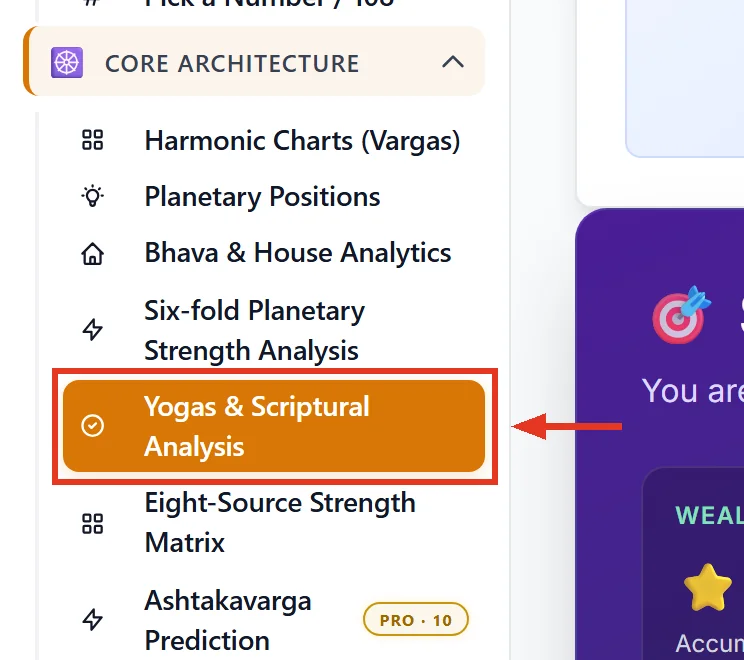
Open any saved chart. In the left sidebar, expand Core Architecture and click Yogas & Scriptural Analysis.
The page title reads "{Name}'s Yogas", not the sidebar wording. Same page.
Step 2 — Read the six statistics first
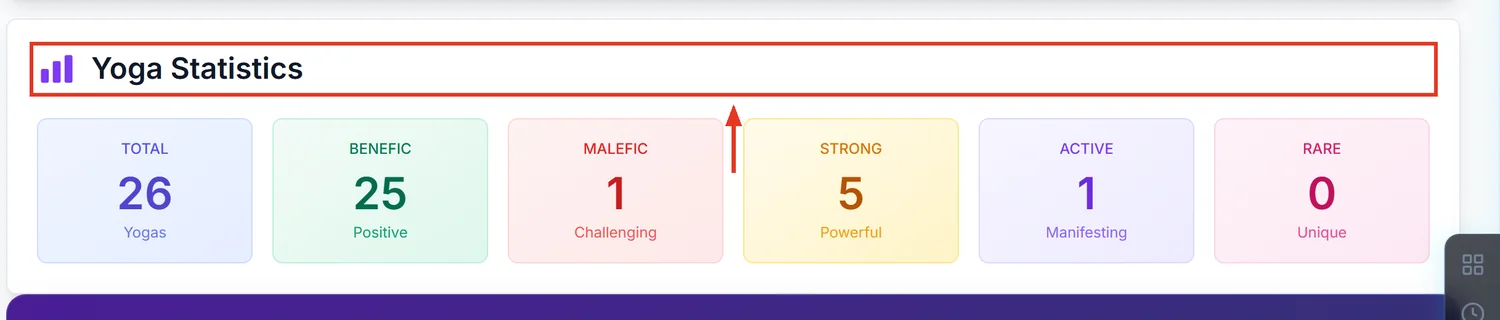
Under Yoga Statistics you get six counts: Total, Benefic, Malefic, Strong, Active, Rare.
Two carry precise meanings. Strong counts yogas above 70% strength. Active counts yogas whose dasha is running right now. A chart with many yogas but few Active ones is a chart whose promise has not yet arrived — that alone answers a lot of client questions about timing.
These six tiles always describe the whole chart. Using the filter dropdown does not change them.
Step 3 — Do not trust a 50% strength reading
50% is the default value when the engine has no strength data for that yoga. It does not mean medium strength. Treat 50% as unscored and judge that yoga from its Verdict text instead.
Genuine scores cluster away from 50. Mahapurusha yogas are floored at 85% and afflicted yogas are cut to 40% of their base, so real numbers tend to sit high or low, rarely exactly in the middle.
Step 4 — Check for the Mitigated chip before calling a yoga benefic
A malefic yoga that has been cancelled or neutralised is relabelled as benefic by the engine. So a green ✓ Benefic chip does not prove the combination was benign to begin with.
Look for the ⚖ Mitigated chip beside it. If present, the yoga was originally malefic and something in the chart cancelled it — worth telling the client, because the cancellation can itself weaken during certain periods.
Step 5 — Separate permanent yogas from timed ones
Two badges decide how you use a yoga in a reading:
- 🧬 DNA / Constitutional — operates the native's whole life. Describes character.
- 📈 Time Activated — only fires during its planet's dasha. Describes a window.
Never promise a Time Activated result outside its period. Cross-check the Dasha page for when it actually runs.
Filtering the list
Filter by Type narrows the cards on screen: All Yogas, Benefic Only, Malefic Only, Active Only, Strong Only, Rare Only. For a client consultation, Active Only is usually the fastest starting point — it shows what is live in their life today.
Using the Synthesis Summary
Synthesis Summary scores three areas as percentages: Wealth Potential, Career Ease, Emotional Joy. Below it, Conflict Resolution: Which Yoga Wins? resolves contradictory combinations and states a verdict — Benefic Dominates, Benefic Wins, or Malefic Persists. Use that section when a chart shows a strong yoga and a strong affliction on the same house and you need to say which prevails.
Common mistakes
- Quoting 50% as a real score. It usually means no data.
- Treating a Benefic chip as proof. Check for Mitigated first.
- Reading a Time Activated yoga as a lifelong trait. It only runs in its dasha.
- Expecting the statistics tiles to follow the filter. They never change.
- Reading the Captain paragraph as chart-specific. That example sentence is identical on every chart; only the Captain planet named above it varies.
If something goes wrong
- No Yogas Detected. The chart is not fully calculated. Reopen the chart, let it recalculate, then return.
- The yoga count grew since last time. Expected. The page re-runs detection on every visit and saves new findings to the chart.
- The menu item is missing. The module has been switched off for your account. Contact support.