KP System gives a four-level significator breakdown of every planet and house, plus an Event Timing tool that checks whether a life event is promised before it searches for dates. It is free for astrologer accounts.
Before you start
KP is visible only to astrologer-type accounts, and only when the module is active on your account. You need a saved, fully calculated chart.
Step 1 — Open KP System
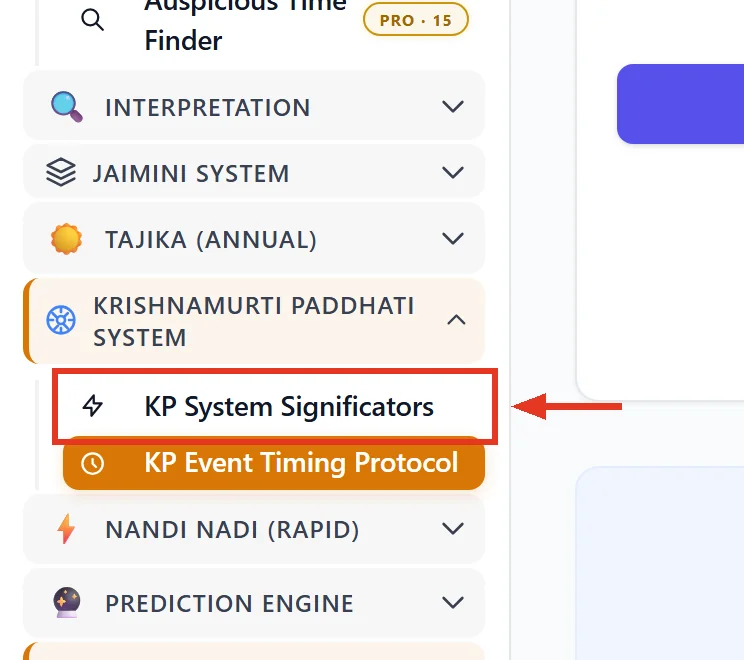
Open a saved chart. In the sidebar, expand Krishnamurti Paddhati System and choose one of two pages: KP System Significators for the charts, or KP Event Timing Protocol for the timing tool. Both are marked FREE.
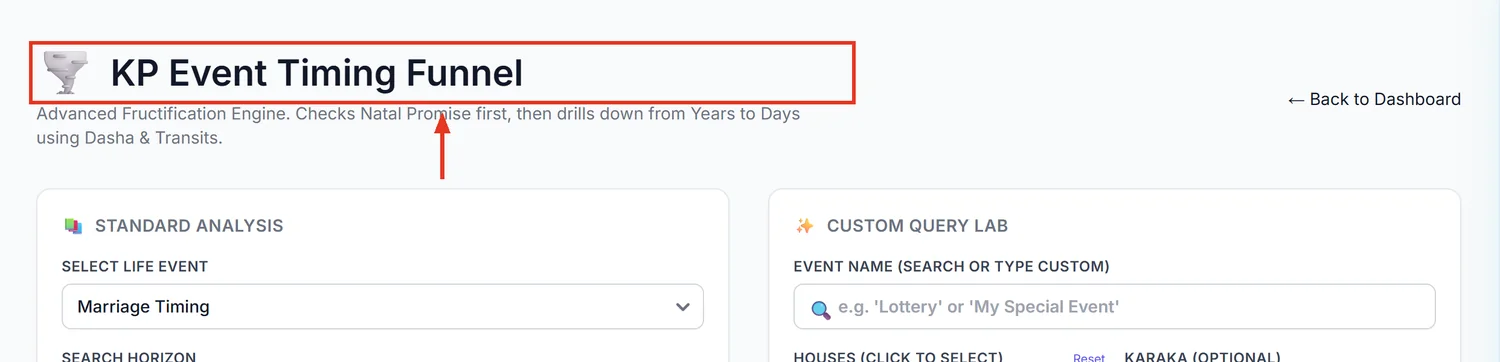
The timing page's own heading reads KP Event Timing Funnel — same feature, different wording than the sidebar.
Step 2 — Read the significator levels in the right order
Under 4-Fold Planetary Significators, the four columns are ranked Level 1 (Strongest) down to Level 4 (Weakest). This order surprises Parashari-trained astrologers: Level 1 is planets in the star of the occupant, not the house lord. The house lord is Level 4, the weakest. Hover each column header for the exact rule.
Step 3 — Answer a question using House Significators
Identify the houses relevant to the question. Look them up in House Significators (Which Planets signify this House?) to get candidate planets. Then check each candidate's own row in the third table — its Result (Signified Houses) column confirms whether that planet genuinely signifies the houses you need before you use it in the answer.
Step 4 — Run the Event Timing Funnel correctly
Use Standard Analysis first: pick a life event from the dropdown and a search horizon (1, 3 or 5 years), then Run Standard Analysis. This always checks Phase 1: Natal Promise Check before searching dates.
A promise score of 0 stops the search with "STOP: Timing calculation skipped because the event is not promised in the birth chart." That is correct behaviour, not an error — an unpromised event has no dates worth searching for.
Step 5 — Know what Custom Query Lab skips
Run Custom Logic in the Custom Query Lab panel assumes the event is promised and shows a 100/100 score without checking. The small helper text under the button, Skips Promise Check (Expert Mode), is the only warning. Do not read a Custom Logic 100/100 as a genuine promise verdict — it means the check was bypassed, not passed.
Use Custom Query Lab when you already know the event is promised from your own reading and only need timing windows for houses or a karaka the standard event list does not cover.
Horary charts
Horary is a separate tool, reached from the site footer link KP Lab, not from the chart sidebar — it needs no saved chart. Enter a Horary Number (1-249) intuitively (the page says to use the number that first comes to mind), type the question, and set the location. The number fixes the ascendant of the horary chart.
Common mistakes
- Reading Level 1 as the house lord. It is the opposite — Level 1 is star-of-occupant, Level 4 is the house lord.
- Quoting a Custom Logic score as a real promise check. It always shows 100 by design.
- Searching for timing before checking the promise score. Standard Analysis already does this for you; do not skip to Custom Logic out of habit.
- Treating the horary number as a date or a chart id. It is an intuitive 1-249 pick, unrelated to time.
If something goes wrong
- Timing page shows a welcome screen only. Normal — nothing has been submitted yet. Pick an event and run the analysis.
- KP System is missing from the sidebar. It only appears for astrologer accounts with the module active. Contact support if you believe this is wrong.
- Tables are missing on your screen. KP significator tables need a tablet or larger screen.
- Horary submission fails. Location fields are required; the error names what is missing.