The Dasha pages show which planetary period is running, down to periods lasting minutes, and when the next begins. Timing every prediction starts here. It is free — no credits.
Before you start
The chart must be fully calculated, and you must own it. Unlike Yogas, dasha pages do not open celebrity or shared charts.
Step 1 — Open the Dasha dashboard
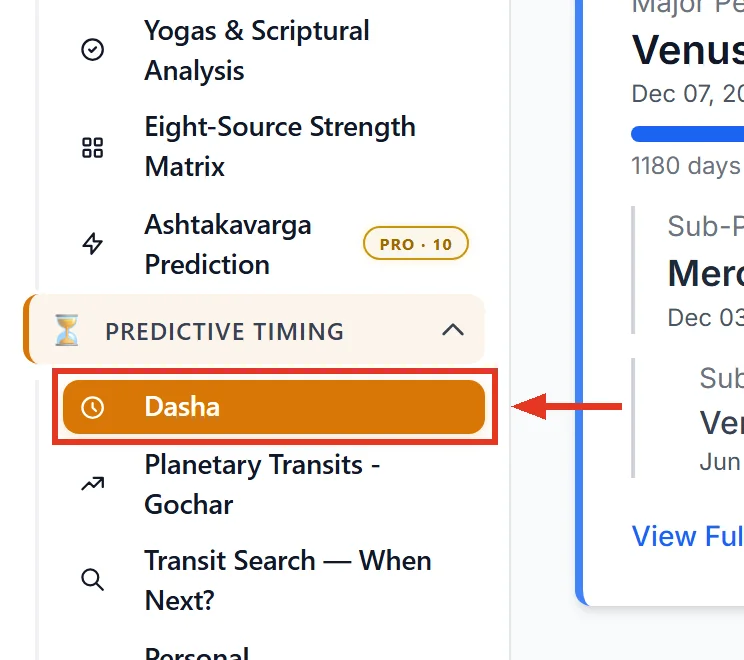
Open a saved chart. In the sidebar find Predictive Timing — expanded by default — and click Dasha, marked FREE.
The page is headed Dasha Systems. The same feature is called Dasha in the sidebar and Dasha Periods on the dashboard tile. Three names, one page.
First load is slow: every applicable dasha system is calculated and saved. Later visits are fast.
Step 2 — Read what is running now
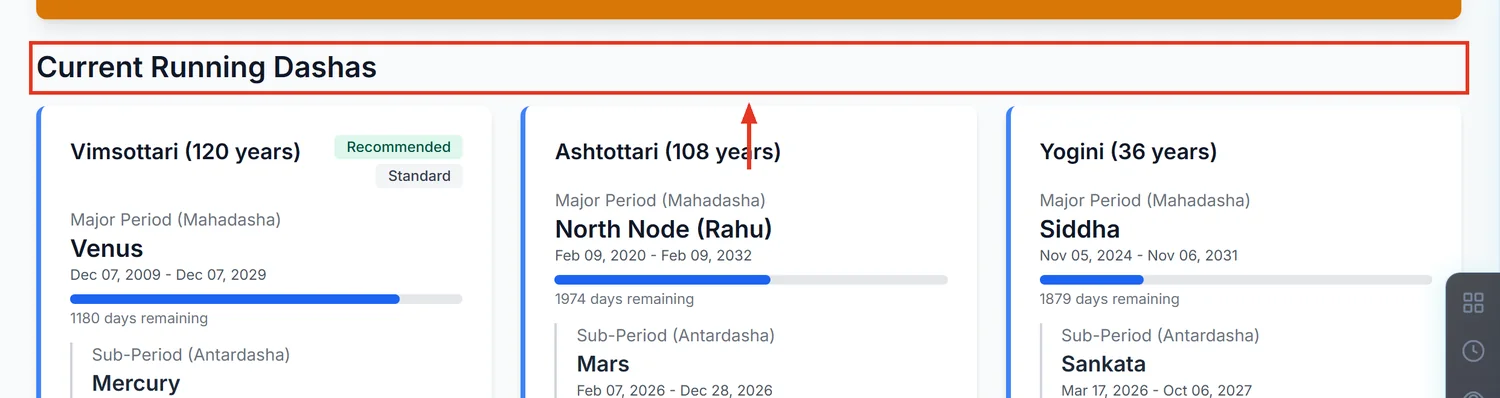
Current Running Dashas shows each system's live period at three levels: Mahadasha, Antardasha, Pratyantardasha. The progress bar and the days remaining line under the Mahadasha tell you how far through the major period the native is.
Step 3 — Understand Recommended before you quote it
A system badged Recommended does not change any other prediction in the app. Every other feature — career, marriage, health, remedies — is timed on Vimsottari, which carries the Standard badge.
The Recommended badge comes from PVR Narasimha Rao's rule for selecting a conditional dasha. Treat it as a second opinion for your own analysis, not as the system the software is using.
Step 4 — Open the full timeline
Click View Full Timeline on a system card, or View Details in the applicability table.
The timeline lists Mahadashas. Click the arrow on any row to expand its sub-periods; they load on first click. The coloured legend maps the five levels: Mahadasha, Antardasha, Pratyantar, Sukshma (Live), Prana (Live).
Depth varies by system. Vimsottari goes all five levels deep. Ashtottari stops at Pratyantar. Yogini and Kalachakra stop at Antardasha — expanding further correctly yields nothing.
Step 5 — Know which levels are stored and which are live
Mahadasha and Antardasha are saved in the database. Sukshma and Prana are computed fresh each time you look, which is why they carry a LIVE chip. They can shift slightly between page loads on the same day, and they never appear in an export. That is by design, not a fault.
The applicability table
Dasha System Applicability lists every system with Total Years, whether it is Applicable, and a Score percentage. The Score rates how well that system suits this chart — it is not a strength of prediction. Total Years is the length of the system's cycle, not the native's lifespan.
Common mistakes
- Assuming a Recommended system drives the rest of the app. Everything else runs on Vimsottari.
- Reading Score as prediction confidence. It rates how well the system suits the chart.
- Reading Total Years as lifespan. It is the cycle length.
- Pressing Recalculate to refresh the display. See below — it deletes first.
- Expecting remedy guidance on every system. It appears for Vimsottari only.
If something goes wrong
- You see a block of code on screen. That is a calculation error, not something you caused. The chart is missing its Moon position or was never fully calculated. Open the chart, let it recalculate, then come back.
- No dasha data available. Same cause. Recalculate the chart first.
- The chart opens elsewhere but not here. Dasha pages only open charts you own.
- Recalculate Dashas. This deletes every stored period for the chart before rebuilding them. The confirmation box does not say so. Use it only when periods look genuinely wrong, and expect the rebuild to take a moment.