The chart page is the page every new user lands on after creating a chart, and the one most other features branch off from. It shows the D1 chart, a KP cuspal chart, four switchable divisional charts, and a full planetary data table. It is free.
Before you start
Chart creation needs an exact date, time and place of birth. There is no unknown-time or approximate-time option — the birth time field is required. If a client does not know their exact time, you will need to estimate one before creating the chart.
When entering the place of birth, you must select it from the autocomplete dropdown. Typing a city name and not selecting it from the list blocks submission with "Please select a city from the dropdown list."
Step 1 — Open the chart summary
From any saved chart, the sidebar's first item under Command Center is Quick Chart Summary V2. This is the main chart page.
Step 2 — Switch chart style and browse divisional charts
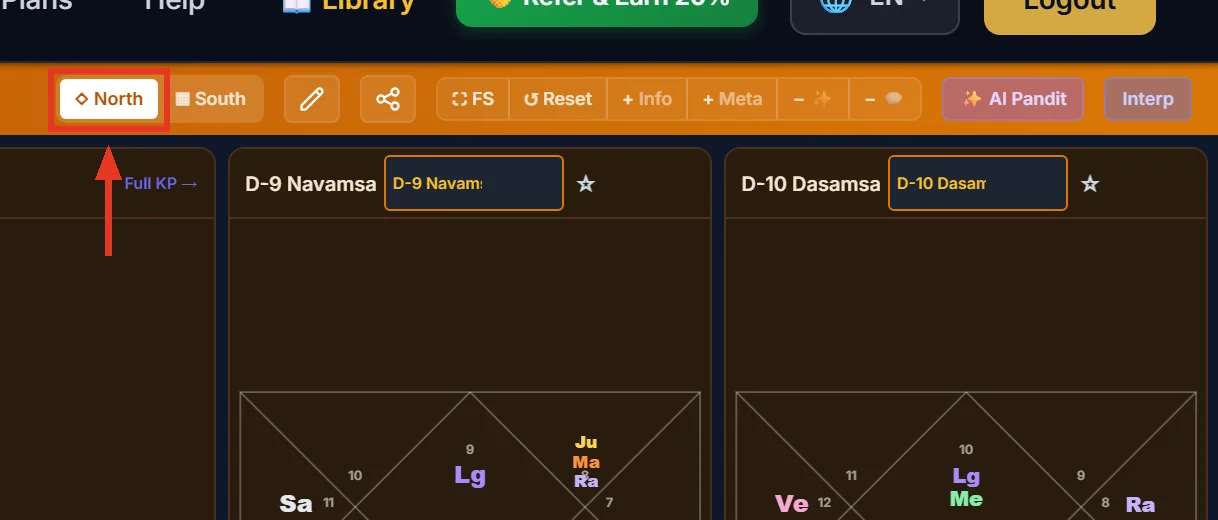
Two buttons, ◇ North and ▦ South, switch between North Indian and South Indian chart drawing styles. There is no East Indian style option.
On the right, four small chart panels default to D-9 Navamsa, D-10 Dasamsa, Bhava Chalit and the Moon chart. Each has its own dropdown, so you can swap any panel to a different divisional chart without leaving the page.
Step 3 — Read the info and metadata bars
The info bar shows Lagna, Moon sign and nakshatra with pada, Sun sign, and the running Mahadasha lord — click it to jump straight to the Dasha page.
The metadata bar shows Sunrise/Sunset, Ayanamsa, Node Type, Tithi, Yoga/Karana and House System. The House System card can show "Placidus" as a fallback label if the field is empty — in practice this chart's actual default house system is Whole Sign, not Placidus. Trust the calculation settings, not this fallback text, if the two ever disagree.
Step 4 — Use the Unified Planetary Matrix
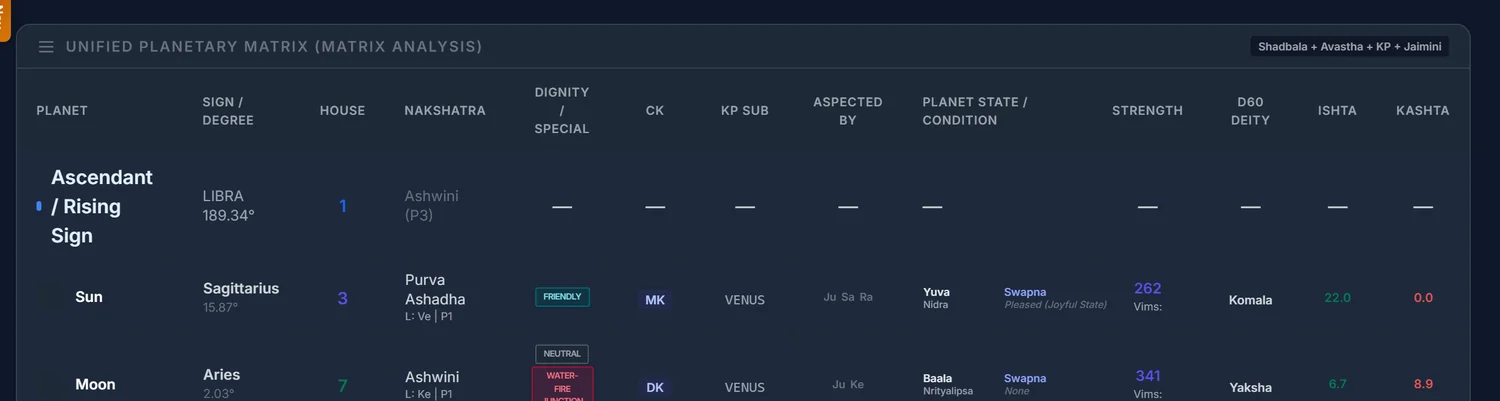
The main table below the charts is the densest source of data on the page: Planet, Sign/Degree, House, Nakshatra, Dignity, Chara Karaka, KP Sub-lord, Aspects, Avastha, Shadbala Strength, D60 Deity, and Ishta/Kashta phala — all in one row per planet.
Retrograde is marked R and combustion C directly in the Dignity column. House numbers are colour-coded: red for dusthana houses (6, 8, 12), green for kendra houses (1, 4, 7, 10).
Know that settings are locked in at creation
Ayanamsa, house system, node type and every other calculation setting are saved onto the chart the moment it is created. Changing your account's default settings afterward does not change any chart you already made — you would need to recalculate that specific chart.
One setting silently overrides another: choosing a KP ayanamsa (KP New or KP Old) forces the house system to Placidus regardless of what you picked, because KP requires it.
Common mistakes
- Expecting an approximate-time option. None exists; an exact time is required at creation.
- Typing a place without selecting it from the dropdown. The form blocks submission until you do.
- Trusting "Placidus" on the metadata card. The real default house system is Whole Sign.
- Changing your profile defaults and expecting old charts to update. They do not; settings are frozen per chart at creation.
- Looking for a working Print or Download PDF button on this page. There is none currently — only the Share button, which produces a shareable image card.
If something goes wrong
- "Invalid date format. Please use dd/mm/yyyy." The date field needs that exact format.
- "No results found" when searching for a place. Try a nearby larger city, or enter coordinates manually using an external map site.
- "You have reached the free profile limit." Non-astrologer accounts have a lifetime chart cap; upgrading to an astrologer plan raises it.
- A chart was created but premium features are locked. You are over your plan's chart-count quota. The chart still exists; upgrade or archive old charts to unlock modules on it again.